
VR Home Desktop
Meta Quest Fleet & Operator App
The ultimate Windows desktop control panel to launch games, mirror live screens, and manage VR arena bookings effortlessly.
Productivity
Built for high-volume VR floors
Replace tedious multi-window setups with one unified operator hub engineered for Meta Quest ecosystems.
01
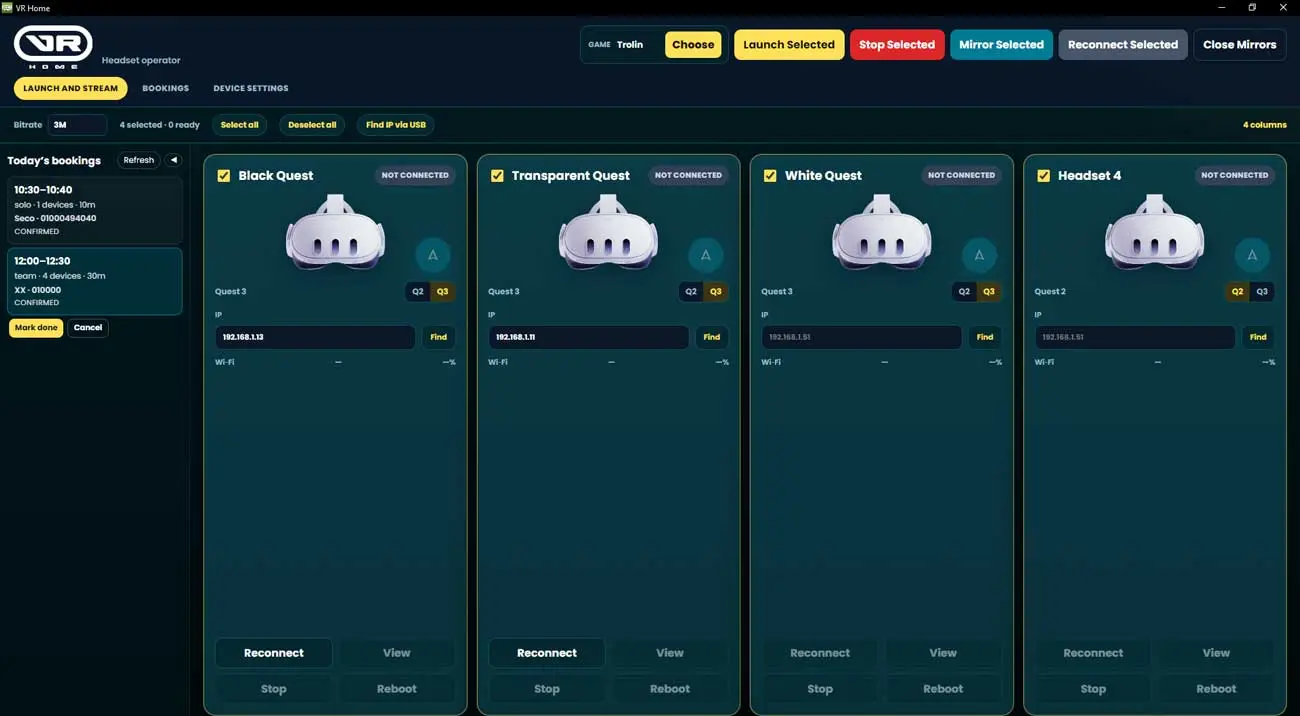
Fleet Launch & Multicast Mirroring
Select up to four headsets simultaneously, queue applications, trigger game execution, and inspect live video mirrors right from your master Windows desk.
02
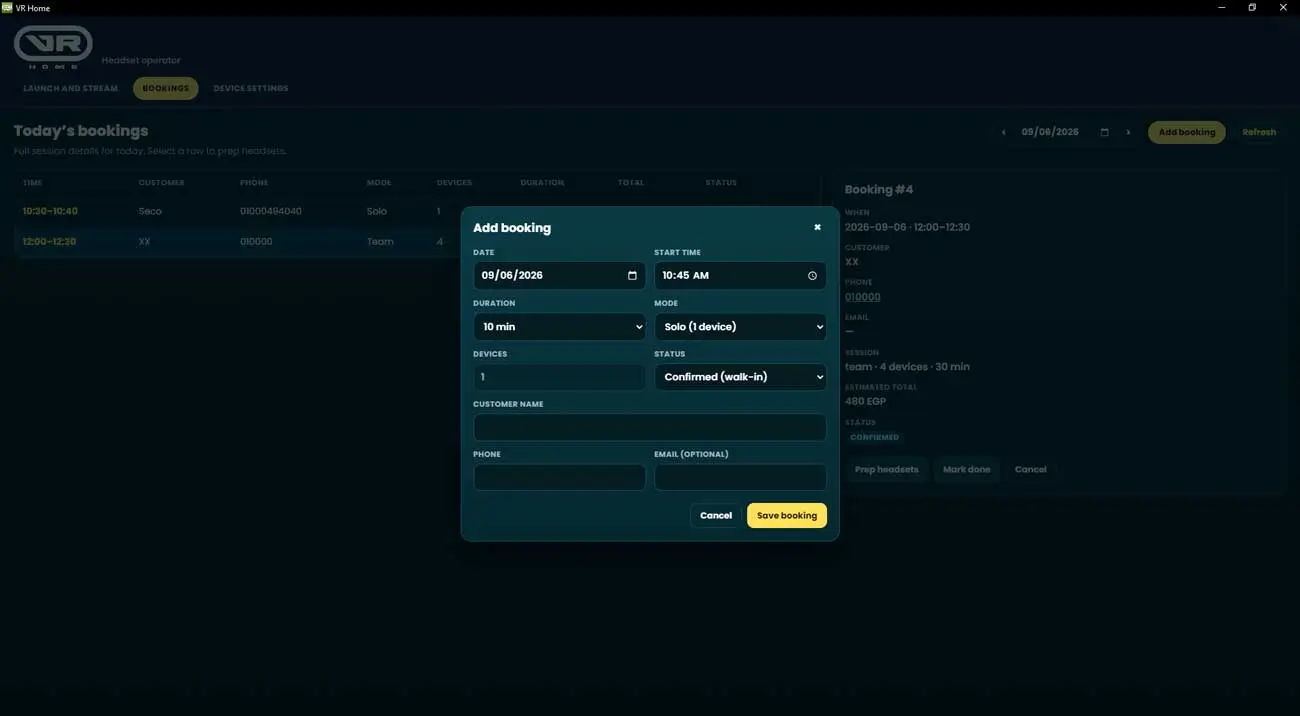
Integrated Arena Walk-In Bookings
Track live session timelines, process walk-ins instantly, and sync guest records with your WordPress backend bookings on vrhegypt.com.
03
Advanced Wireless ADB & Network Control
Seamlessly establish wireless ADB over local Wi-Fi, identify headset IP configurations via quick USB mapping, and auto-reconnect dropped terminals without manual scripting.
Business Expansion
Start Your Own VR Arena Franchise
Leverage VR Home Egypt’s proven software stack, operational templates, and technical expertise to launch a turnkey virtual reality entertainment center.
Turnkey Software & Tech Stack
Get complete licensing for our Operator desktop application, automated IP pairing, and reliable wireless device control tools.
Curated Game & Content Library
Gain access to pre-tested multiplayer and single-player VR titles optimized for commercial arcade operations and maximum guest retention.
Staff Training & Setup Support
Benefit from end-to-end guidance on hardware deployment, network configuration, and frontline floor management from our experienced Giza team.
Audience
Designed for Professional Operators
Whether running our Mohandessin flagship floor or scaling an independent commercial gaming lounge across Egypt.
Fully compatible with Meta Quest 2 and Meta Quest 3 hardware arrays.
Install
Download VR Home Operator
Windows 10 / 11 · x64 · Version 1.0
Requires Meta Quest headsets connected to the same local network router. Keep auxiliary ADB processes closed during active sessions.
Audience
Setup in 4 Simple Steps
01
Install and initialize. Run the Windows installation package and open VR Home from your desktop.
02
Map device IP addresses. Plug each Quest via USB once to detect and store its wireless ADB route.
03
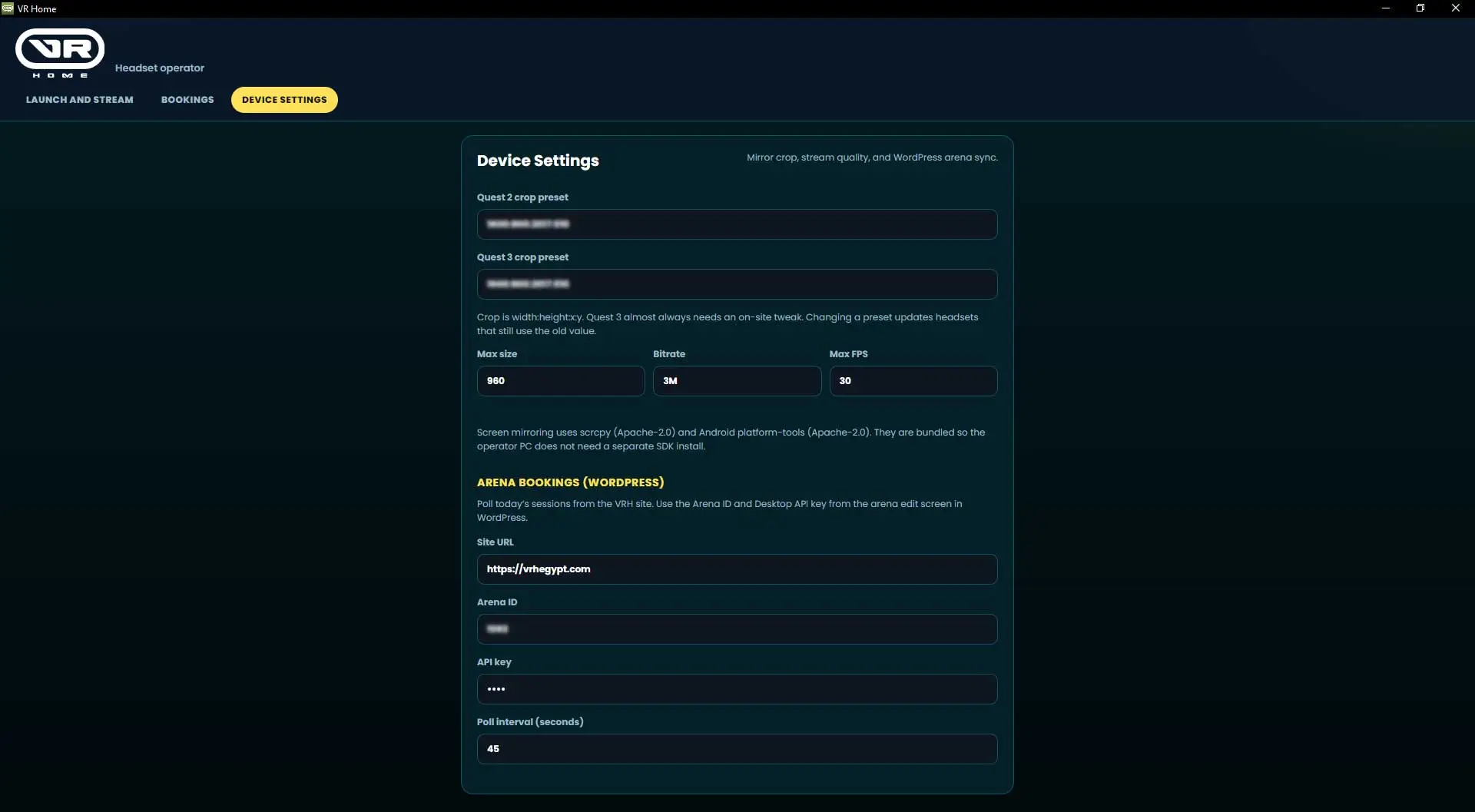
Link your website backend. Configure your site URL, arena identifier, and secure API keys in Device Settings.
04
Launch and manage. Select your target headsets, choose your application, and click launch.
Partner & Franchise Inquiries
Ready to scale your VR business?
01013209000
Call or WhatsApp · VR Home Egypt, Mohandessin, Giza